Appearance
Inbox Overview
The Inbox is your daily home base in Study Hub. It's where you land when you log in and where you'll spend most of your time - this is how you stay on top of what needs your attention without hunting through lists of studies.
Why the Inbox Matters
Instead of checking every study to see if something changed, the Inbox brings the work to you:
- Colleagues mention you when they need your input → it appears in your Inbox
- You set follow-ups on notes you need to revisit → they appear when it's time
- Click through to open the study directly → do what's needed → dismiss → done
This workflow keeps you focused on what actually needs doing.
What's in the Inbox?
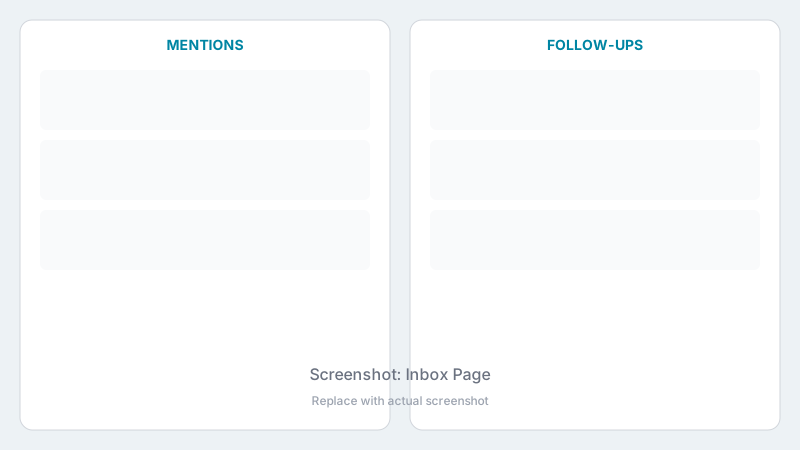
The Inbox displays two main sections side by side:
| Section | Purpose |
|---|---|
| Mentions | Notes where you or your team have been tagged |
| Follow-ups | Reminders you've set for yourself on study notes |
Accessing the Inbox
- The Inbox is your default landing page after logging in
- Click Inbox in the sidebar to return to it anytime
- All authenticated users have access to the Inbox
Inbox Layout
The Inbox is divided into two panels:
Left Panel: Mentions
Shows notes where you've been mentioned:
- Personal Mentions - Notes where you were tagged directly
- Team Mentions - Notes where your team was mentioned
Right Panel: Follow-ups
Shows your scheduled reminders:
- Follow-ups you've set on study notes
- Organized by date (past, today, upcoming)
Quick Actions
From the Inbox you can:
- Click any mention to open that study and jump to the note
- Click any follow-up to open the related study
- Toggle between Personal and Team mentions
- Group mentions by study for easier navigation
- Dismiss mentions you've addressed
Understanding Counts
The Inbox shows counts to help you track your workload:
- Personal (X) - Number of personal mentions waiting
- Team (X) - Number of team mentions waiting
- Past/Today/Upcoming - Follow-up counts by timeframe
In This Section
- Viewing Mentions - Understanding and managing mentions
- Managing Follow-ups - Working with scheduled reminders